|
FAQ |
  
|
| Show/Hide Hidden Text |
In this section you will find a full list of frequently asked questions together with answers
Proxies for the ProxyChecker can be bought. Otherwise proxy sources can be collected and given to the ProxyChecker for the grabbing operation. You can look for proxies through search engines by writing something like 'free proxy list'. You can also parse links to proxy sources with our Regular Expressions Builder. You can also do the following: Type in Google search: inurl:/proxyc/engine.php Follow the links and then in the address bar, change engine.php to list.txt. Thus you will get a list of web resources with proxies. Save some of them into your file which you then upload to ZennoProxyChecker as a file with proxy-containing web resources. |
 How can I set up CAPTCHA recognition through external services?
To know the answer read here. |
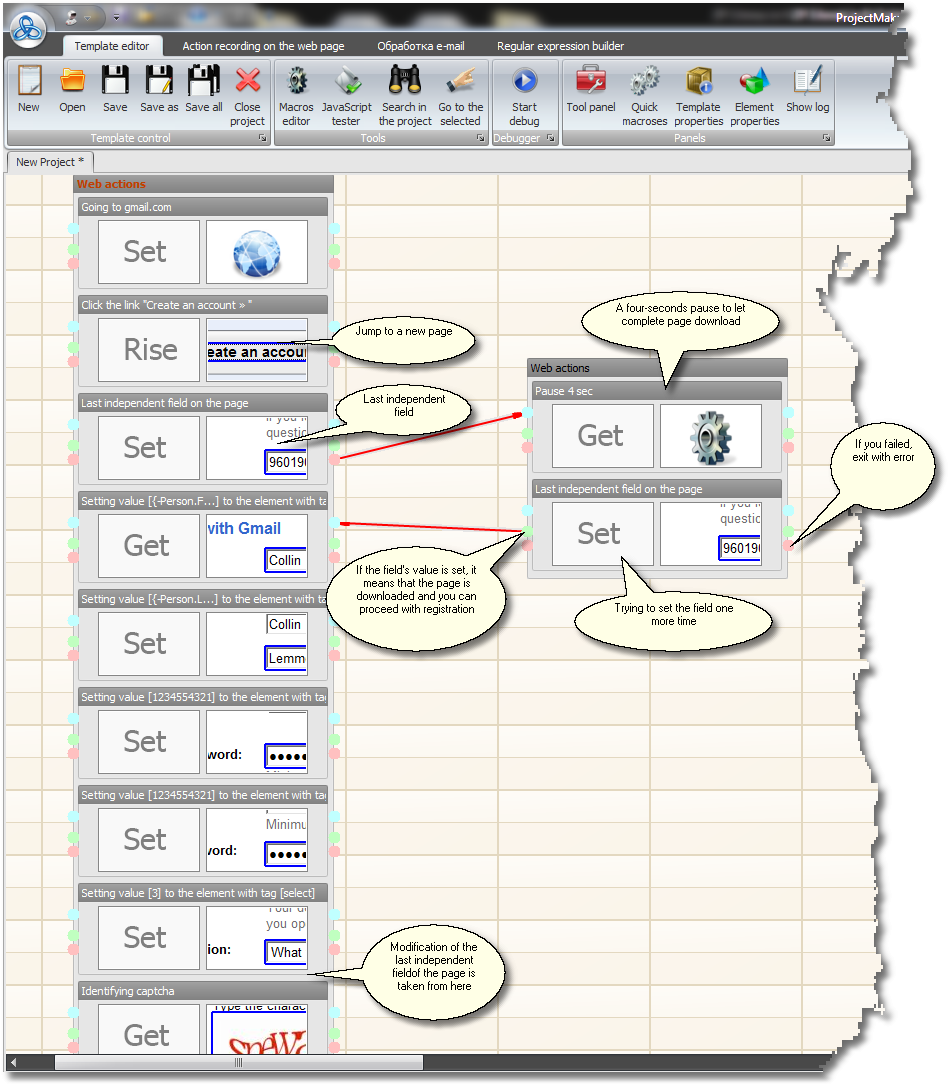
How to verify if my registration (or any other actions on the web page) was/were succesful?
To know the answer read here. |
I encounter numerous errors at template execution!
|
How can I get a text from a file?
Read here |
How can I get an article from a file?
|
How can I get from the file such data as the login:password pair and then split it for further use?
Record them into the file as one line but with a spacer (a colon (:), for example). Then take the line from the file (with or without deleting). You will get the following line login:password that can be divided with the Split macro. If you indicate 0 as the part number after split you will get the login, if you indicate 1 - you will get the password. |
How can I set up ProxyChecker to select the best proxies?
In ProxyChecker there are several preset rules to get proxies from it, so you can use these rules. How to set up rules to select proxies from ProxyChecker read in the Proxies Setup section. |
Find this information in the Parser and Loop Setup sections. |
Built-in macros are not enough for me, I need more!
Use the JavaScript execution macro and create your own small JS to process texts. Read here on how to test JS. |
Why should I use JavaScript in templates?
From the template control panel you can activate a JS execution macro. This gives you the opportunity to write your own small text processor or a mathematical function processor (this one may be helpful to recognize mathematical CAPTCHA's written as plain text). Thus, if you suffer from lack of functionality of your existing macros you do not need to write a PHP script to put in hosting and activate each time with other parameters or use a step to work with your own code - all this complexity just to compute a small function. |
When I want take text from a file I get some gibberish symbols!!!
Text files to store data should be in UTF-8 coding. |
When inside a template, how can I get text of the page on which I am currently?
Read this section. |
How can I get URL of the page on which I am now?
Read this section. |
How can I install the error ignoring feature?
Read this section. |
How can I make a pause during template execution?
Use a pause macro from the macro category entitled 'Work With Template'. This macro returns an empty line, that is why it can be inserted into practically any field of the branch supporting macros execution (practically all fields can suit this purpose). |
How can I activate my template once in several hours/minutes/days?
Use Scheduler, the second tab in ZennoPoster application. |
How can I make my template work with a proxy?
Read this section. |
How can I parse out several values from an e-mail?
Read in the confirmation by e-mail section. |
How can I unite several lines into one?
Simply write macro links referring to these lines one after another (separated with a simple space, for example). Macros support nesting of any complexity. |
How can I link branches with an arrow (to make links between steps)?
Double click with the left mouse button on the exit point (the green point signifies an error-free exit, while the red point signifies and error-triggered exit) of the first branch and then on the entrance (the blue point) of the other branch. The two branches will be connected with a red arrow. |
How can I delete/copy several branches at a time in Template Editor?
Holding Ctrl select the branches you wish to delete/copy |
How can I disable images (flash, JavaScript, sound, etc.)?
Read the Template Configure section and the subsection 'Configuring Web Browser Object Parameters' of this section. |
How can I replace http headings that are being sent to the server?
Read our forum here. If it does not let you in, it means that you do not have the rights to view this closed topic, as it is reserved for customers only. |
How can I clean cookies (cash-memory)?
Read the subsection 'Configuring Web Browser Object Parameters' of this section. To summarize: this can be done through a Set--WebBrowser-branch. In the dropdown menu choose 'Clean Cookies' or 'Clean Cache' and then write true in the parameters. |
How can I upload a file to the server (I need to upload a file to a web page)?
You just record a modification of the field responsible for file upload to the server and then you change the saved value to the path to the required file. It is better to cross-check this path as IE sometimes gets it wrong. |
My CAPTCHA is not an image, it is something else!!!
Read the Work With CAPTCHA section. |
I cannot record an action/field modification!
Read the Troubleshooting section for template execution errors and ways to deal with them. |
Please teach me to write regular expressions!
In 95% of cases the information found in this section should be enough. Any additional information can be found in Google search (your request for search should be 'regular expressions in C#'). |
Where can I find additional settings for the program?
Next to the main program files there is a folder called Settings. In it there is a file globalsettings.settings. Open it with SettingsManager (find it in program folders). A window will open where you will be able to find and modify additional settings split into categories. |
How can I get Select (or radio) by its value and not by its number?
When recording a change of an element with the tag select or with the expanded tag input:radio you will get recorded a corresponding branch with the change of this element. Later, when editing this branch you will see a field with the name of this attribute. There it will be written value and the attribute's value will be a figure. You need to change value to selecteditems and instead of the figure to write the text you want to select. If the select functions supports several variants write these values through a semi-colon ( ; ). |