|
Element Properties Panel |
  
|
| Show/Hide Hidden Text |
|
Element Properties Panel |
|
| Show/Hide Hidden Text |
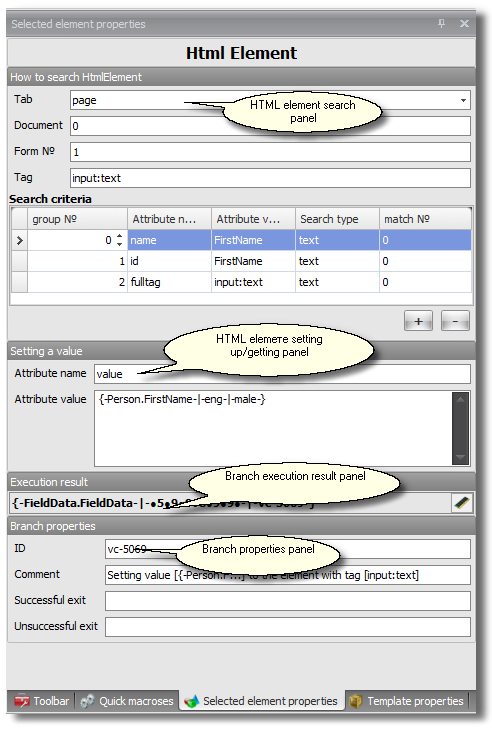
Element Properties Panel may have different appearances depending on which branch is highlighted. For instance, it may look like this:
Branch properties
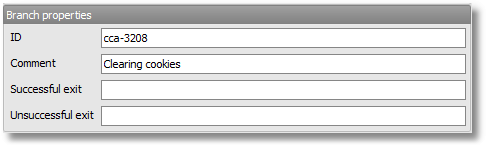
Each branch has its own 'Branch Properties' panel which is usually situated at the bottom. When opened, this panel contains the branch address and comments that are also displayed in the branch title in the editor. This panel also contains addresses of exits from the branch. In any case, this panel requires very limited attention.
Execution result
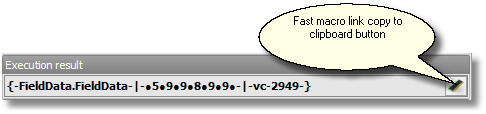
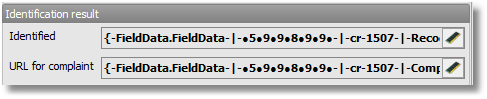
The 'Execution Result' panel is displayed for any highlighted branch. You will very often refer to this panel as it contains execution results for the entire branch (a macro link to this text). Execution result is the major text of a highlighted branch. It can be, for instance, an element property under configuration or a text extracted from a web page. In the e-mail confirmation branch this panel looks somewhat different as it may contain several execution results at a time (texts parsed from an e-mail). The number of execution results in this case is directly linked to the number of regular expressions. The same holds true for a CAPTCHA recognition branch: there's an additional macro link referring to URL to send a claim to the CAPTCHA recognition service, if an invalid entry was made by the service's employees.

Searching for HTML element
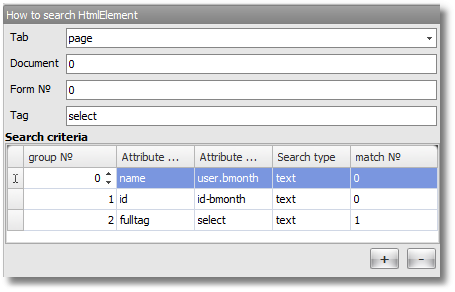
When working with an HTML element and in order to set a value for one of its attributes, in this case the element is CAPTCHA, you will have to first find this element. Searching for this element is affected according to the rules specified in the 'How to Search for HTML Element Panel'.
In it, you may indicate the bookmark, document, form and tag of the element. To zero in on the required element you must specify search conditions. It's unlikely that you will have to do it manually - these conditions are usually configured automatically while recording the template.
Set/get value and rise event
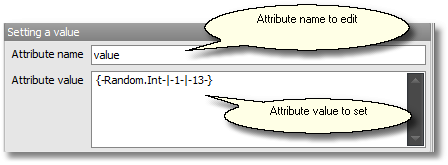
If you are working with an HTML element then depending on the type of a branch you use, may, for instance, change an attribute of the element (more often than not this one being a value)
or you can get an attribute

This is how the rise event panel looks like:

Setting parameters of a WebBrowser object
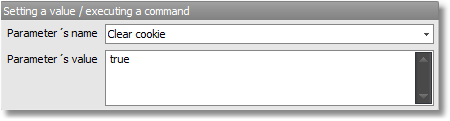
When you work with a Web Browser object, e.g. cleaning cookies or extracting text from the current web page, you choose the name of the action and set its parameters. All this is done in the following form: