|
Template Configuration |
  
|
|
Template Configuration |
|
To see all the properties of a template simply go to the corresponding panel.
Enter template name and comments for the project, if needed.
Ticking download options for web page elements
You can tick the download options you require in the pop up menu:
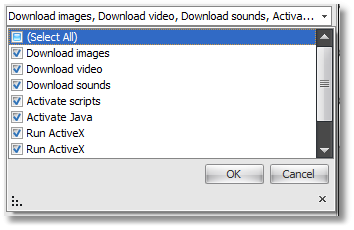
For example, disabling image download can save internet connection resources and processing time. It is also recommended to disable sounds, video, download and execution of ActiveX (when there's no flash CAPTCHA). Pop-up windows can be also disabled if you face a lot of pop-up ads while surfing. However if there is at least one or more,popup windows in a new page that are required, the PopUp function must not be disabled. On occassion you can disable JavaScript execution if you must bypass some firewalls, although normally such protective systems are bypassed automatically.
Proxy
Template properties panel has a field called 'Proxy Rules'. Here you should enter a rule that will guide extraction of a proxy from the ProxyChecker for a particular template execution.
Important!
| 1. | Disabling and enabling various web page management options as well as changing your current proxy can be done inside a template at any time when needed through a branch of the Set--WebBrowser type. |
| 2. | Even with image download option disabled, CAPTCHA will still be downloaded. |