|
CAPTCHA recognition |
  
|
| Show/Hide Hidden Text |
|
CAPTCHA recognition |
|
| Show/Hide Hidden Text |
ZennoPoster offers several ways to set up the CAPTCHA recognition function - manually (through manual recognition servers) or by creating your own CAPTCHA recognition module.
Anti-CAPTCHA and CAPTCHABot module configuring
Read here
Configuring a template for CAPTCHA recognition through a required module
In order to be able to recognize CAPTCHA's in a way different from the manual technique, you must indicate a module through which they will be recognized.
In a template choose a branch that directs CAPTCHA recognition and open the Element Properties Panel where you will see a field entitled 'Module'.
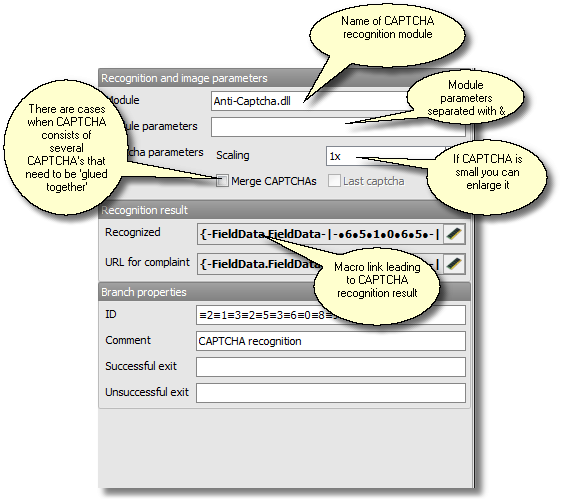
Insert into this field the module's name - Anti-Captcha.dll or CaptchaBot.dll and indicate their parameters (quite often there are no parameters at all). Get updated parameters from the sites of web services you are interested in. You require these parameters for certain cases, such as, dealing with a mathematical CAPTCHA, i.e. instead of typing in 7+5 you have to indicate the resulting calculation, which is 12. Other cases concern reCAPTCHA or CAPTCHA's containing numbers or when it is a case-sensitive CAPTCHA.
CAPTCHA comprising several images
If CAPTCHA comprises several images you can unite them to save time for recognizing separate parts of CAPTCHA.
To unite CAPTCHA's (unless you have not done so when recording your template - watch these Video Lessons) go to Element Properties Panel, tick the 'Merge CAPTCHA's' box and identify as the 'Last CAPTCHA' the one which is the last in the row of CAPTCHA's to merge.
Text CAPTCHA
You may often encounter a text CAPTCHA, especially on poorly protected web resources. This type of CAPTCHA differs from the simple (graphical) one by its nature - it's no longer a picture but plain text. You do not need to send this CAPTCHA anywhere; you can extract it (by parsing) right from the text on the web page. To do this you need to take out the whole text on the web page using the Get--Web browser branch, this will select the text and type a regular expression for page parsing into the parameters list. To learn more go to the Registration Validation section.
Mathematical text CAPTCHA
This is the same text CAPTCHA with a minor difference. Instead of text, a mathematical expression is used, e.g. 58+63. You can transform this text into an image (see info on flash CAPTCHA) and send it for recognition. Another option is to use a JavaScript execution macro. This macro can be found in Macros Builder under the heading 'JavaScript'. You may insert the parsed expression (58+63) into this macro and after execution it will return the sum - 121.
Flash CAPTCHA
ZennoPoster 3 can turn (render) any element into an image. First find this element in the Element Tree, then by right clicking open the menu to select actions that can be performed upon this element. Select the 'This Is CAPTCHA' option and that will be it!
Important!
| 1. | Even if you disabled image download in your template, the ordinary CAPTCHA (the one that is not text or flash) will still be downloaded for recognition. |
| 2. | Any object or element on a web page can be transformed into an image and sent for recognition (read more about flash CAPTCHA). |