|
Validation |
  
|
| Show/Hide Hidden Text |
|
Validation |
|
| Show/Hide Hidden Text |
Almost always following a registration on a web resource and before saving the results it is necessary to make sure that the registration ran smoothly and without errors. Otherwise among the saved data there may be an invalid one.
Validation plan
To validate your registration is quite easy - after all registration activities and before saving the results you just need to perform several additional operations, namely to take the web page text and look for a key word in it that could prove that your registration was successful. This key word could be a phrase 'Congratulations, your registration is complete' or simply the word 'exit'. The main thing is that this phrase or word should not appear on the web page in case of unsuccessful registration. Then if the key word is found you proceed to saving the results, if not, you exit registration with error. All in all you will have two additional branches at the end of the registration process. Read further to learn more about these branches and their configuration.
Extracting text and parsing for the key phrase (word)
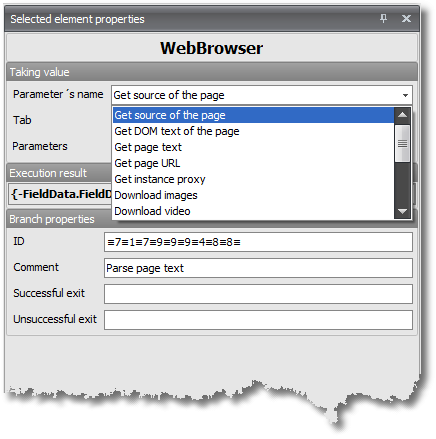
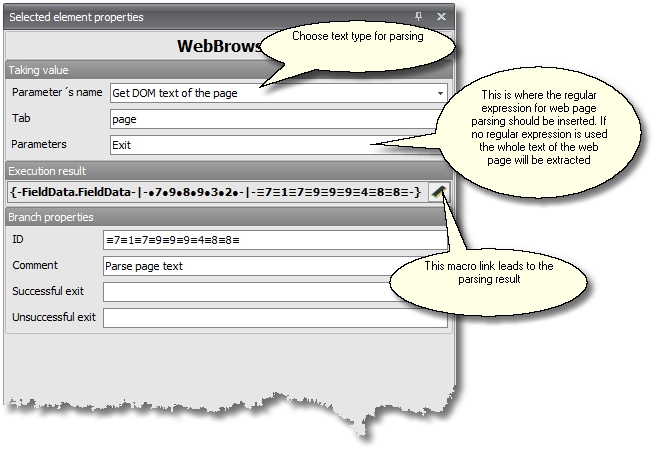
You create a branch of the Get -WebBrowser type. This branch will extract web page text; parse it with a regular expression preset in the branch's parameters. The regular expression will be parsing the web page text for the specified phrase or word. The regular expression and the text it is parsing for coincide in 95% of cases, that's why more often than not you will not have to use the tools to test the regular expression in the web page text. You should also know that the nature of web page text can be different:
• Page source text - this is the source text downloaded from the server. You can see this text in any browser at pressing the 'view page source' button. The distinguishing feature of the source text is that it has no frames and no JavaScript objects. Extracting this text takes very little processing time.
• DOM-based text - this text appears after execution of all JavaScript objects on the web page. This text corresponds to the full tree of the HTML document with all JavaScript objects executed and DOM texts of all frames enabled. Extracting this text takes a lot of processing time.
• Page text - this is the text as seen by the user. It contains executed JavaScript objects and frame texts. Extracting this text takes as much time as extracting DOM-based text.
• Current URL - can be extracted very easily. To learn how to use it read subsection 'Modifications'.
A natural question thus arises: which text is best for parsing? If the text is not inside a frame and is not generated with JavaScript then it's better to work with the page source text, otherwise DOM-based text is recommended.
Verifying results of text parsing
Now, when text parsing is complete we add another branch of the Set-Logical operation type. This branch will help us check the parsed text for empty spaces. In other words, if we were parsing for the phrase 'Congratulations, your registration is complete' and this phrase was not there, then we will get an empty line as the result of the parsing process. On the other hand, if this phrase was part of the page text then this is what we will get at the output of the parsing process. Thus by applying this logical operation branch we will check the parsed text for empty spaces. If these empty spaces occur then there was an error at registration, if the searched phrase is there then everything went alright and you can save the results. Please be reminded that the parsed text can be taken by a macro link leading to the branch where page text was being parsed. Have a look at the special motes at the bottom of the page.
To see what this process looks like go to the 'Repeated Data Input After Failure' section.
Modifications
There are a couple of modifications to solve this task.
Your search can be targeted not at the availability of a specified text but rather at the absence of another specified text. Variations of this text can be the following: 'entered CAPTCHA is incorrect' or 'this login is already in use'. This solution can be particularly useful when you need to work on a specific error in data input and not just any error.
You can also check the current URL and see the status of your registration.
Important!
In order to compare texts in the logical branch you need to put both expressions in brackets, e.g.:
"macro link" = = "" in this expression you compare the result of executing a step (to which the macro link is directing) and an empty line.