|
Template creation |
  
|
| Show/Hide Hidden Text |
|
Template creation |
|
| Show/Hide Hidden Text |
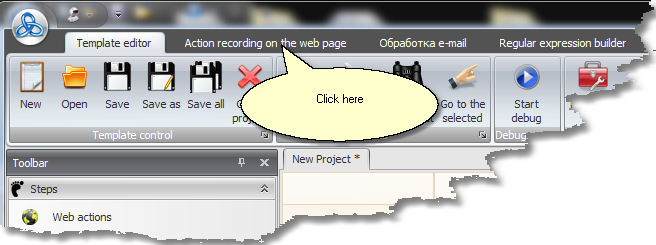
When beginning, start the ProjectMaker application from the program root folder, then select the second tab that says 'Record Actions on Web Page'.
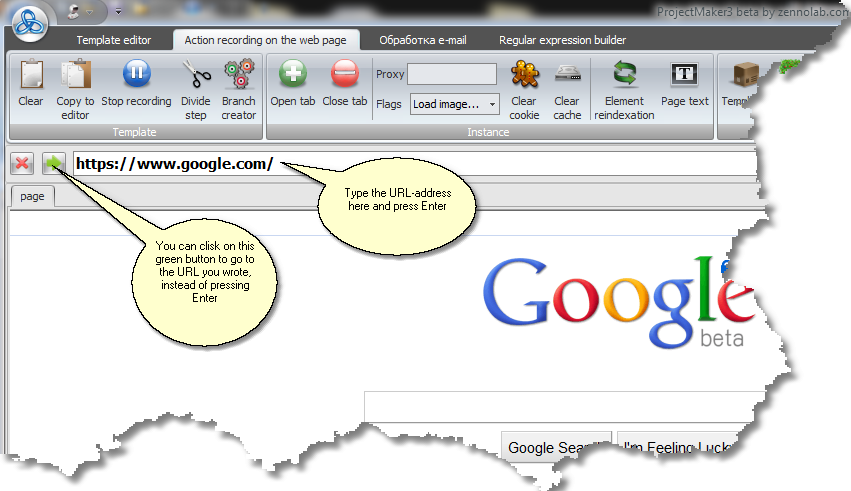
In the window that opens type the URL-address, for which the template is being created and press Enter or the green arrow button.
Wait until the download status button turns green. Each time when browsing between web pages wait until a page is completely downloaded, otherwise actions that you performed before the download was complete will not be recorded in the template.
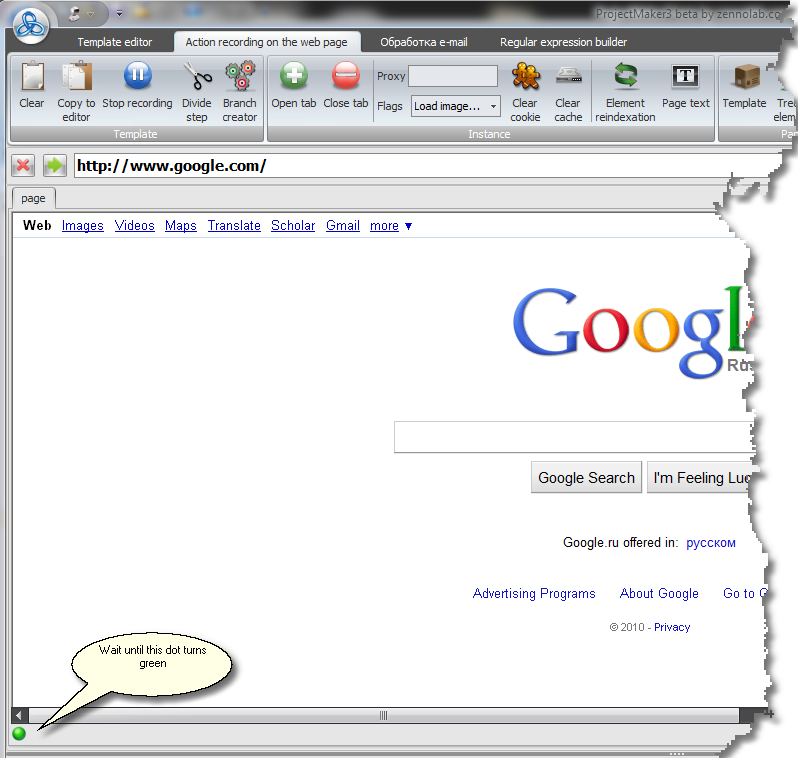
After the page is completely downloaded you can start recording your actions. Basically, you just need to perform your ordinary actions, i.e. clicking on links and buttons - the program will be recording all this.
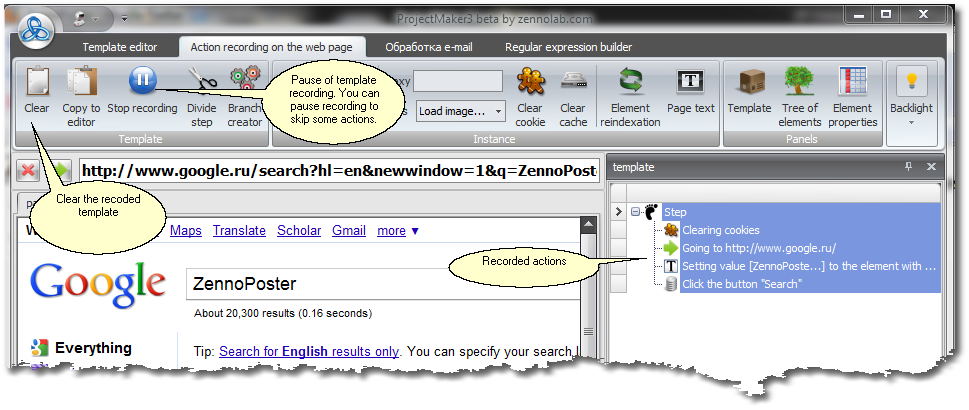
You can immediately start filling in fields with macro scripts (?). For detailed information on how to do this, watch our Video Lesson.
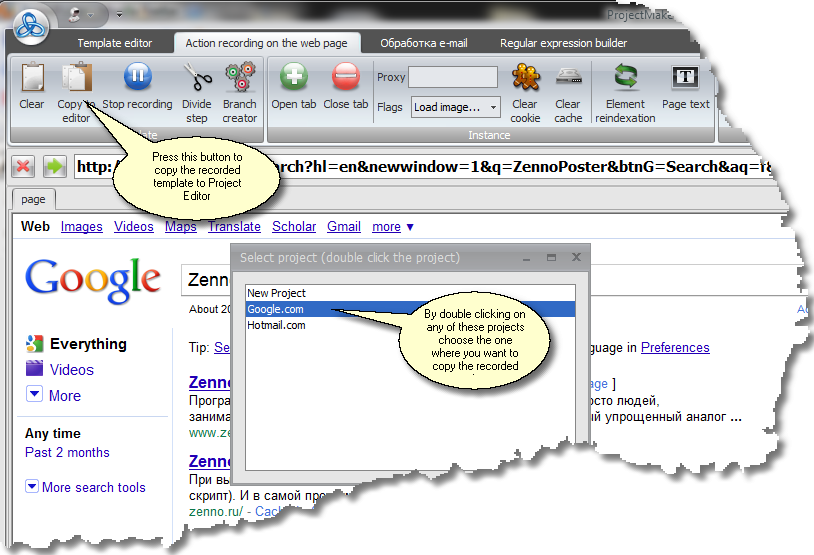
For web page analysis use the following panels: 'Elements Tree', 'Highlighted Element Properties' and the 'Page Text' window. After you are through with recording your actions the newly created template should be copied to Template Editor. For this, press the 'Copy to Editor' button and choose the name of the template where you wish to copy the recorded template to (?) (In the window that appears double click on the name you require).
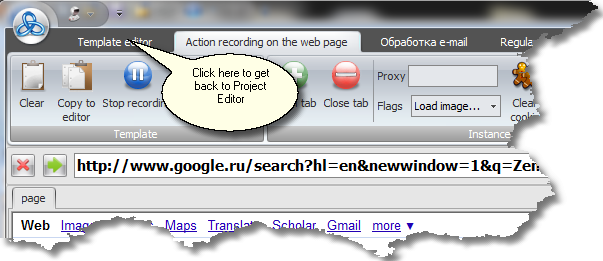
Next, you can go to the 'Template Editing and Configuring' section where you will find the template you just copied.