|
Debug project |
  
|
| Show/Hide Hidden Text |
|
Debug project |
|
| Show/Hide Hidden Text |
Once your template is created it needs to be debugged.
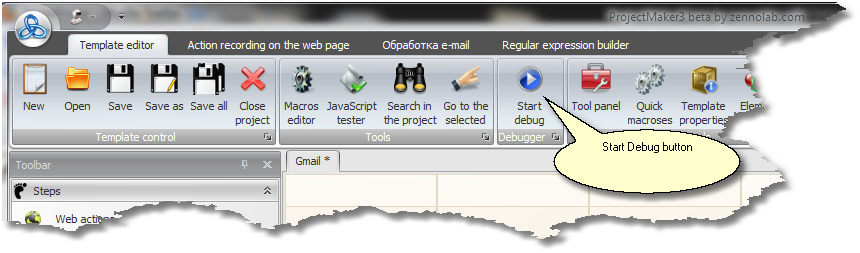
For this, you have an integrated debugger. To launch it press the 'Start Debug' button in Template Editor.
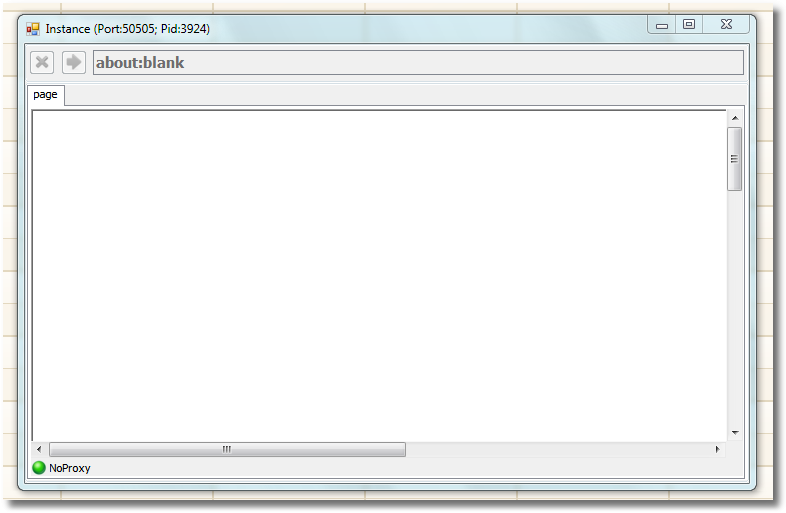
An instance window will open (?)
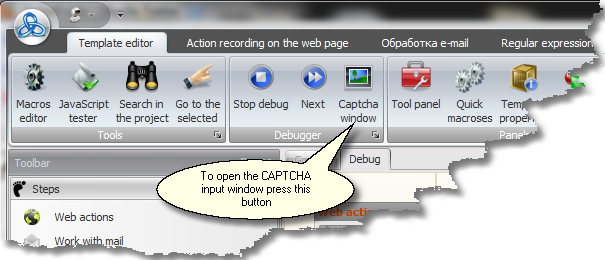
Following you will notice several new buttons next to the 'Start Debug' button.
Using the 'Next' button you will be able to browse through all the steps and branches of the template. Each time you press this button, a branch is executed, which means you can watch in detail an entire step-by-step process of executing the template and detect the errors, if any. The branch currently under processing is marked - it displays a bold title. When debugging you cannot edit the template, however you can see results of working macros, for example, in the Element Properties Panel. The Action Log records all the details about the execution of each branch.
To enter CAPTCHA manually press the 'Enter CAPTCHA Window' in which you type the CAPTCHA.
Please remember to save your template while editing, any unforeseen circumstance may result in losing all your work!