|
E-mail confirmation |
  
|
| Show/Hide Hidden Text |
|
E-mail confirmation |
|
| Show/Hide Hidden Text |
In the ProjectMaker there's a special tab which allows configuration of the branch for registration confirmation by e-mail.
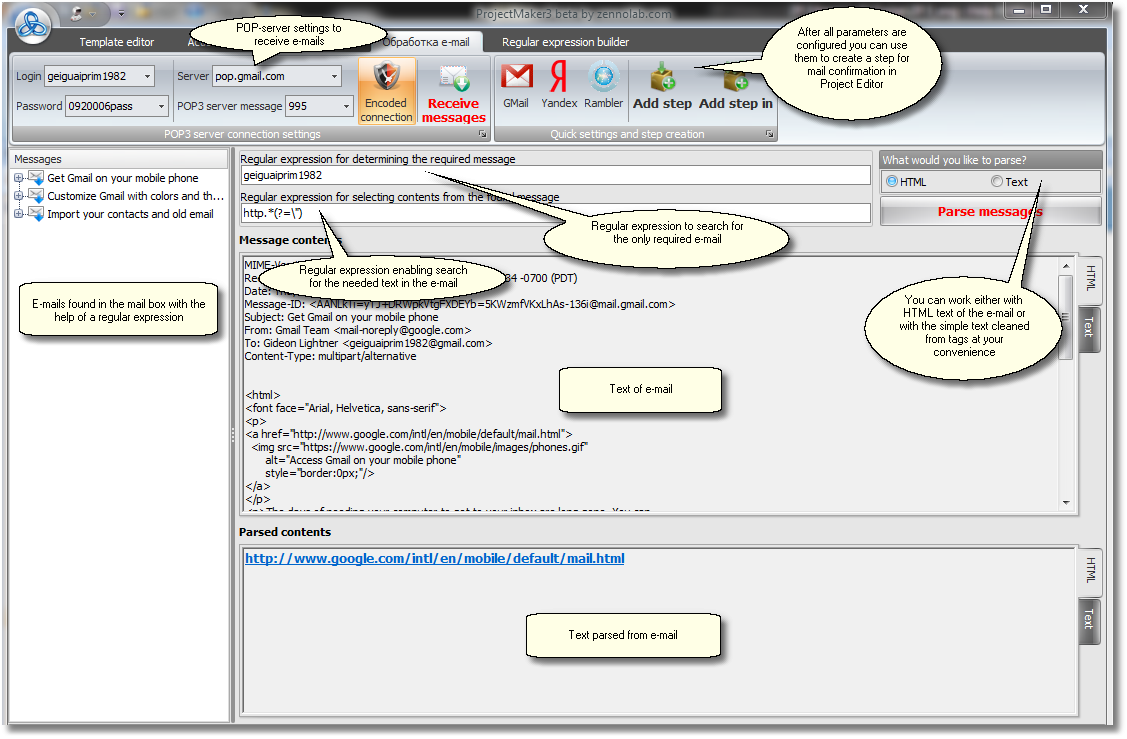
| 1. | First set up your connection to the POP server with the e-mails for which the confirmation function should be enabled (login, password, POP-address of the server, port name, type of coding). |
| 2. | Press the button 'Receive Mail'. At least one sample e-mail can already be found in the e-mail box and you can set up the confirmation function with the help of this e-mail. If you did everything correctly, in the window on the left you will see a list of e-mails that are presently in your e-mail box. If you do not see this list then the settings have been incorrectly setup (you can check out the correct settings in the help guide of your mail service in the section that refers to -settings of mail programs using POP protocol), or you currently have no e-mail in your e-mail box at the moment (in Gmail such e-mails can be simply invisible). |
| 3. | The first thing to configure is a regular expression enabling a search for a particular e-mail. Read more on regular expressions in the Confirmation By E-mail section. Select the required e-mail and in the large space at top you will see its text. Using this text together with Regular Expressions Builder write this regular expression to enable search for this brand of e-mails. Then press the 'Parse Mail' button. As the result, on the right side in the list of incoming e-mails, all e-mails should disappear except for the one we were looking for. If more than one e-mail stays in the list, it means that the regular expression is wrong. |
| 4. | After this you need to create a regular expression to parse the required text out from an e-mail. And again you use the text of an e-mail and the Regular Expressions Builder. Insert the conceived regular expression into the second field and press the 'Parse Mail' button again. In the lower window you will see the parsing result. If your regular expression is correct then you should get the text you need (a link or some data like a password, for instance). It's worth noting that you can also parse the source text of the e-mail with HTML tags (e-mails are often sent as an html page) or just a text cleaned from all tags. It's up to you to decide which of these two options will be easier for you to create a regular expression. |
| 5. | Press the 'Add Step' button in the top control panel and choose a template into which you will add the preset set for -registration confirmation by e-mail. |
Similar sections:
Read more on configuring confirmation be e-mail in the Confirmation By E-mail section.
Important!
Gmail gives out mail through the POP protocol only once, for the second time the e-mail will become invisible for our program, although it will remain in the e-mail box. This is either a feature or a bug of Gmail. It can be debugged by switching off and on again the POP supporting function in the settings of the Gmail box.