|
"Filters" |
  
|
|
"Filters" |
|
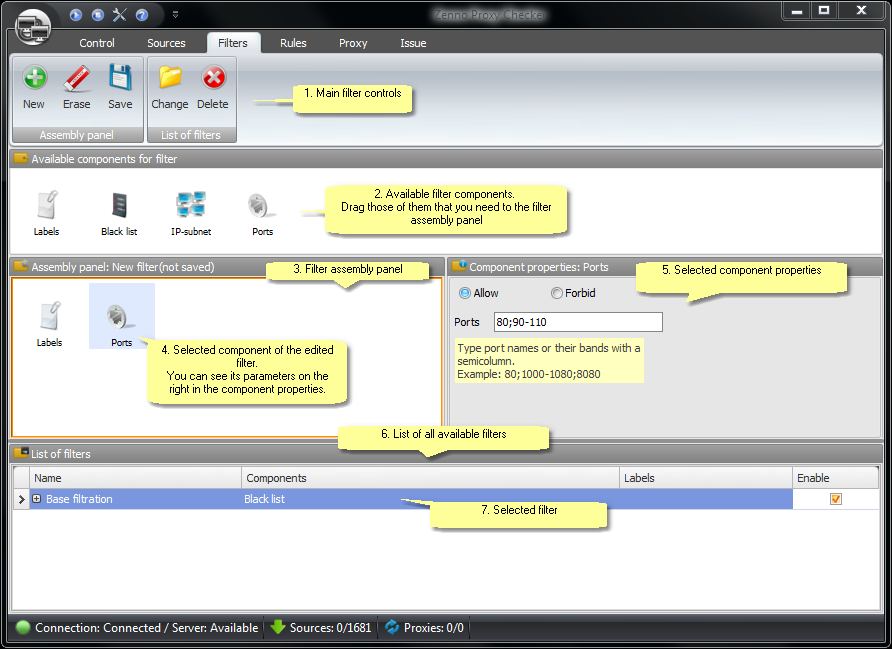
Description:
1. Main filter controls
This group of buttons (the upper row has the same buttons as the lower) accounts for the main features of working with filters.
New |
Creates a new filter in the assembly panel. |
Clear |
Clear the filter, opened in the assembly panel, from all the components. |
Save |
Save the filter, located at the assembly panel. |
Modify |
Change the filter, selected in the list of filters, by downloading it to the assembly panel for editing. |
Delete |
Delete the filter, selected in the list of filters. |
For more information on filter creation and configuration refer to the Filter creation and configuration section.
2. Available filter components
See all the available filter components in the Filter components description section.
3. Filter assembly panel
In the filter assembly panel you can see a filter which is being edited at the moment. To create a new filter select the "New" menu element,
to modify the filter selected in the list select the "Modify" menu element.
4. Selected component of the edited filter
Having pressed the component, you can see its parameters in the "Component properties" panel.
5. Selected component properties
You can change the component parameters in this panel.
6. List of available filters
All the available filters are listed here.
7. Selected filter
In the name column you can change the name of the selected filter, but all the names must be unique.
By default, the filter is deactivated after saving. To make it active, check the "On" box.