|
"Control" |
  
|
|
"Control" |
|
Description:
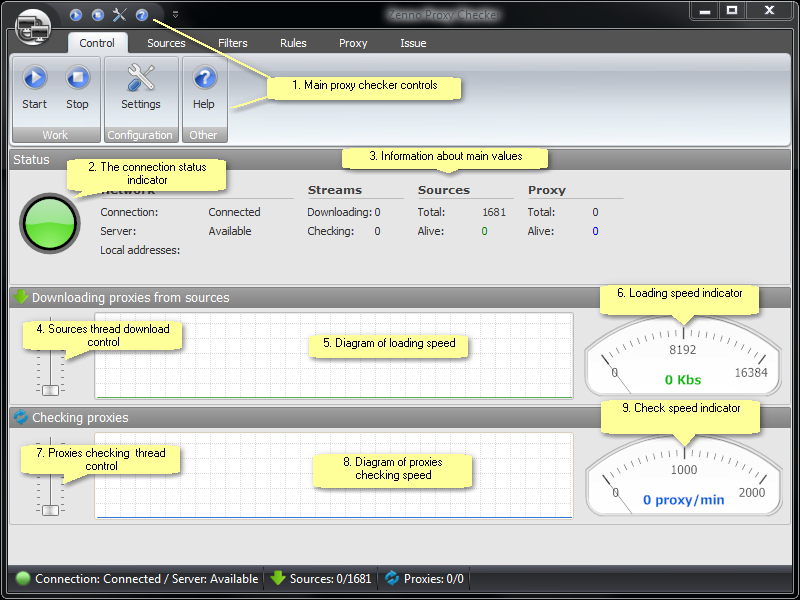
1. Main control buttons of the Proxy-checker
These button groups (the upper row is the same as the lower) account for the main controlling features of the Proxy-checker:
Start |
Starts download threads and maximum check of the current profile in the Settings |
Stop |
Stops download and check threads |
Settings |
Opens the Settings window of the Proxy-Checker |
Help |
Opens the Help file (you're reading it at the moment) |
2. Connection state indicator
This indicator shows the readiness of the Proxy-checker to implement its functions. Possible variants:
Grey |
No Internet connection, Proxy-checker does not function. |
Yellow |
Available Internet connection, but the server with the check script is not available. In this case proxies can be downloaded from the sources, bur their check won't be available. |
Green |
The connection and the script server are available - ProxyChecker is completely ready for work. |
3. Information on the main values
This area contains main information on streams, sources and proxies.
4. Control over source download threads
Move the slider to change the number of proxy download streams. The upper limit is set according to the current profile in the Settings.
5. Download speed diagram
Approximate changes in the speed of downloading proxies from the sources for the last period of time.
6. Speed download indicator
The current speed of downloading proxies from the sources.
7. Control over proxy check threads
Move the slider to change the number of proxy check threads. The upper limit is set according to the current profile in the Settings
8. Speed check diagram
Approximate changes in the speed of checking proxies for the last period of time.
9. Check speed indicator
Current speed of checking proxies.